
Integration saves you the headache of juggling data between five (or even ten) different fundraising platforms. Your CRM is the center of your fundraising data, so your auction data should naturally flow toward this center.
Integrating auction software with a CRM helps you:
- Bring donor data & donation data into one platform for analysis.
- Segment your donors.
- Make donor outreach easier.
- Reduce data errors.
- Cut back on hours spent on data transfer.
But how do you sync auction data with your donor CRM?
We’ll cover 3 simple options:
- Native CRM integration
- Automation tools
- Bulk spreadsheet imports
Clean Auction Data Exports
Easily export auction reports in the CharityAuctions analytics suite.
Create Your Auction for FreeWhat Auction Data Should You Sync with Your CRM?
Not everything has to be synced up from your auction software. Choose which data to sync based on what you track in your CRM. Here are our suggestions:
Data to sync:
- Donor contact information
- Non-bidding registrants contact information
- Donor preferences (i.e. preferred contact method)
- Donation amounts
- Ticket sales
- Total revenue
- Event costs
- Basic event details (including name and date)
- Engagement metrics
Data to skip:
- Full bidding histories
- Minor event details
- Item catalog & item descriptions
- Shipping statistics
Native CRM Integration
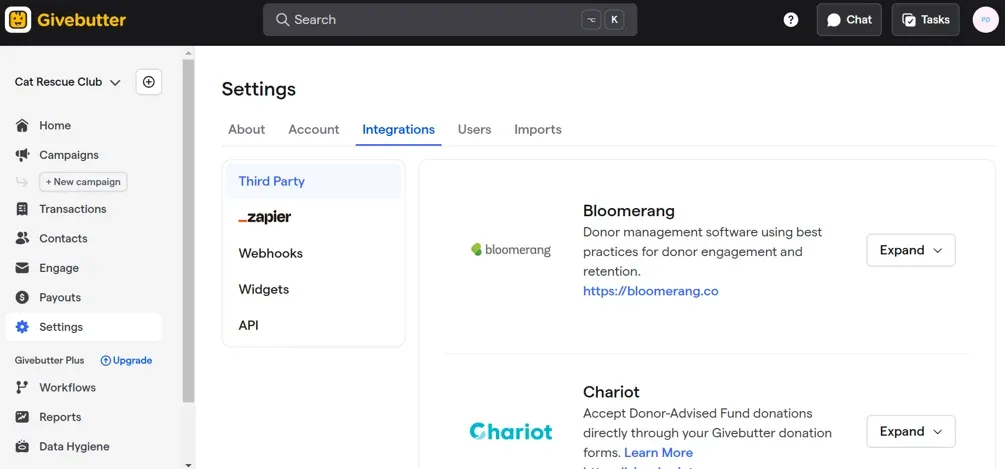
Sometimes, your auction software and donor CRM already integrate with each other. It’s easy to miss among the dozens of features on your software.
With a direct CRM integration, your two software platforms speak directly to each other—with no work required on your end.
When to Use Native CRM Integration:
- Your auction platform and CRM have built-in integrations with each other.
How to Check if Your Platform has Native CRM Integration:
- Search for integrations on your auction platform’s website.
- Check for your CRM under a “CRM” or “Integrations” tab in your auction software.
- Check for your auction software in an “Integrations” tab in your CRM.
Steps for Native CRM Integration:
- Select your CRM within your auction software’s integrations, if available.
- Or contact your auction platform to access their integrations.
Automation Tools
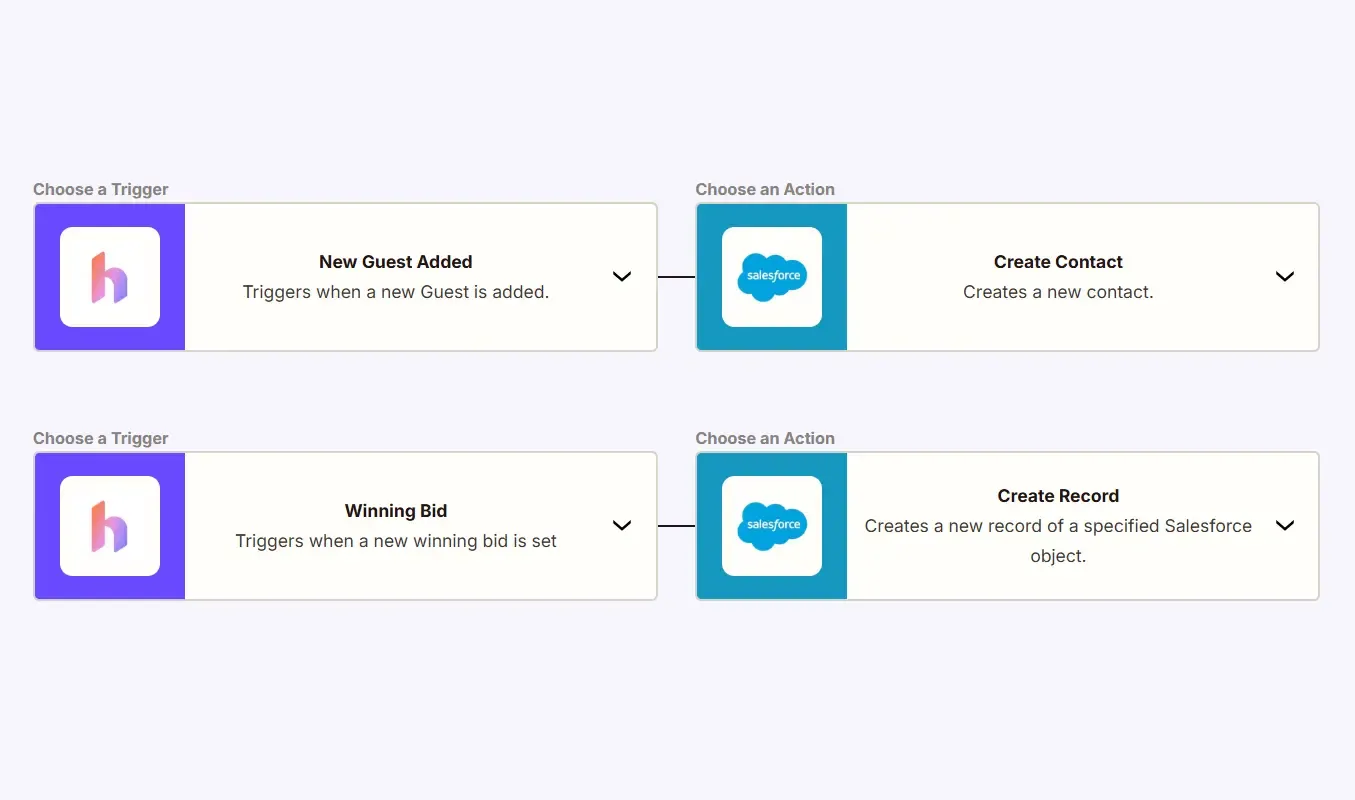
When your software doesn’t come with its own integrations, you can still integrate through an automation tool. These tools also let your software platforms speak to each other, and through this communication, you can automate data transfer tasks to sync auction data.
The automation tool that’s most likely to integrate with your platforms is Zapier. With Zapier, you'd set up a trigger task from your auction software (like "new winning bid") that automatically triggers a task in your CRM (so in this case, updating your donation records).
When to Use Automation Tools:
- Your auction software and CRM are supported by the same automation tool.
- You have a lot of event data to sync.
- You host multiple fundraising events per year.
- Manual transfers are time consuming.
How to Check if your Platform Integrates with Automation Tools:
- Check if your auction software and CRM are listed in Zapier’s supported apps list.
- Or check the list of apps on your selected automation tool’s website.
Steps for Using Automation Tools:
- Watch this short Zapier tutorial.
- Explore this example of a Zapier integration.
- Or follow your automation tool’s procedures.
If you’re using a paid plan with Zapier, don’t forget to ask for a nonprofit discount!
Bulk Spreadsheet Imports
If you can’t integrate your platforms, you’ll have to manually transfer your data—but you can do this in bulk. Export auction reports as spreadsheets, then import them into your CRM. This works universally for all auction software and CRMs.
When to Use Bulk Spreadsheet Imports:
- Your platform has no direct integrations and no automation tool integrations.
- You don’t have much event data to export.
- You don’t host events often.
Steps for Bulk Spreadsheet Imports:
- Download your auction reports from your auction software.
- Map your fields (i.e. edit your spreadsheet column headers to match their corresponding CRM fields).
- Convert your spreadsheets into CSV files (if not already in CSV format).
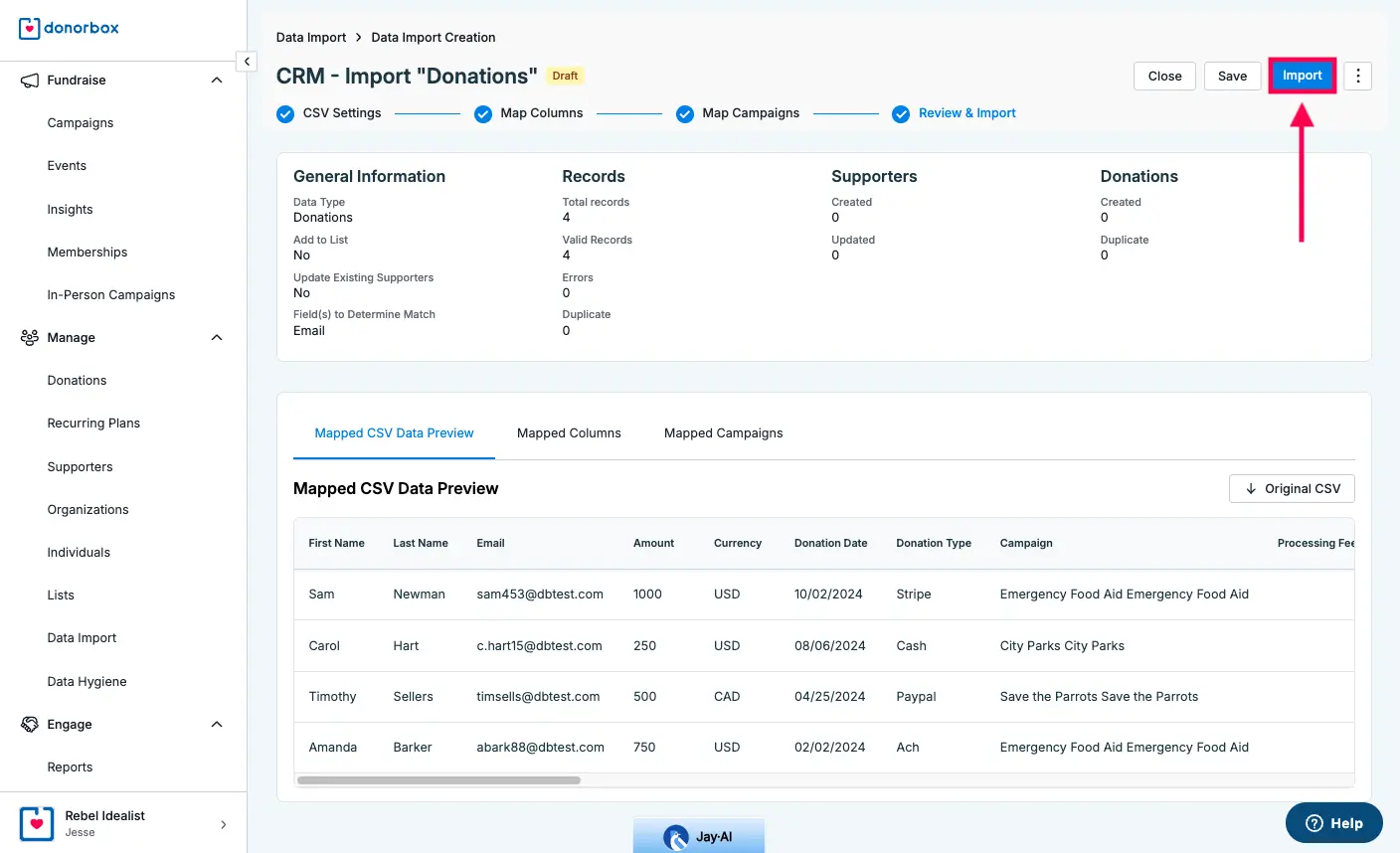
- Upload your CSV files into your CRM via its import data feature.
The basic steps are the same for importing data across any CRM. Here are more detailed tutorials for some common donor CRMs:
- Salesforce data import tutorial
- Hubspot data import tutorial
- Donorbox data import tutorial
- Bloomerang data import tutorial
- Bonterra data import tutorial
- Blackbaud (Raiser’s Edge) data import tutorial
- DonorPerfect data import tutorial
- Neon One CRM data import tutorial
ALWAYS preview your bulk import before submitting it into your CRM. Oftentimes, your import can’t be undone. Your CRM will ask you to review your data before uploading it.
Frequently Asked Questions
How can I integrate auction software and a CRM if no automatic integrations exist?
This requires coding your own custom integrations that involve web hooks and APIs. Larger organizations with heavy data loads may want to recruit a programmer for this. For smaller organizations, it’s rarely worth it.
How do I format my spreadsheets for manual imports?
Each CRM has its own rules for formatting, and some provide templates. Find the tutorial for your platform above, or ask your platform for help.
What if I want to consolidate data from multiple events within my auction software?
Use the Recurring Auction Playbook to consolidate your data and strategies from recurring auctions, or use the Auction History feature in CharityAuctions.
What donor insights can I gain from integrating auction software with CRMs?
Read our article about Bidder Behavior to learn how to use bidding data and donor data to predict donor behavior.
💡 Try this in ChatGPT
- Summarize the article "How to Integrate Auction Software with a Donor CRM" from https://blog.charityauctions.com/crm-integration-guide/ in 3 bullet points for a board update.
- Turn the article "How to Integrate Auction Software with a Donor CRM" (https://blog.charityauctions.com/crm-integration-guide/) into a 60-second talking script with one example and one CTA.
- Extract 5 SEO keywords and 3 internal link ideas from "How to Integrate Auction Software with a Donor CRM": https://blog.charityauctions.com/crm-integration-guide/.
- Create 3 tweet ideas and a LinkedIn post that expand on this How To topic using the article at https://blog.charityauctions.com/crm-integration-guide/.
Tip: Paste the whole prompt (with the URL) so the AI can fetch context.